iphone iphoness

Divorce Log

"Making Documentation Easy"


cycleSMS Correspondence

Import all vital text messages and emails directly into the app.

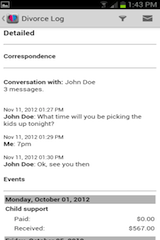
gearDetailed Log

Customize all entered data by selecting specific dates and categories that you wish to email or print.

graphExpenses

Keep track of all divorce related expenses. Add necessary details in the note field (i.e. co-pay's, child care, clothing, etc).

peopleChild Support & Alimony

Store all payments, paid and received, in this category as a recurring or one-time event.


Why Choose Us?

Divorce Log was created to make documentation easy for any individual involved in a divorce or custody situation. It allows you to keep all vital information in one place. Lawyers, child support offices and psychologists may use this data when preparing your case.

Divorce Log gives you an easy and convenient way to keep track of all incoming and outgoing child support/alimony payments, time spent with your child, expenses, and correspondence. The app is private and you control all data entered and who sees the information. All entries stored in the app can be forwarded directly to an email address so that you can send pertinent information to your attorney, child support office or recipient of your choice.

It is essential to document before, during and after divorce to ensure the best outcome of your case.


Screenshots

Android and iPhone images

  • Divorce Log Android
  • Divorce Log Android
  • Divorce Log Android
  • Divorce Log Android
  • Divorce Log Android
  • Divorce Log Android
  • Divorce Log Android
  • Divorce Log Android
  • Divorce Log Android
  • Divorce Log iPhone
  • Divorce Log iPhone
  • Divorce Log iPhone

Features

-Ability to add multiple children/ex’s (co-parent)
-Copy full SMS conversations into correspondence at one time
-Custom date selection
-Calculates all expenditures automatically
-Email function to send data directly from the app in an HTML or plain text format
-Note area under each category to add additional information
-Retractable legend
-Side swipe function to change days/month

Getting Started

1) After installing the app you will be prompted to enter in a child/ex’s name and DOB. This must be done in order to proceed.
2) After entering the name and DOB, tap the check mark in the upper, right hand corner to save.
3) The entered name will now appear in the upper, left hand corner of the app next to the Divorce Log icon.


Name Selection

You have the ability to add multiple names. You should add names of all children and ex’s (co-parent). It’s important to document as much information as possible.

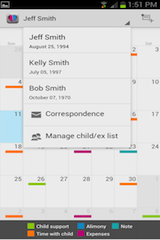
1) To add additional names, tap the name at the top of the screen and a drop down box will appear with options to select.
2) To add or edit names, select the manage child/ex list tab. Then select the desired name to edit/delete or you can select the face icon in the upper, right hand corner of the app to add.
3) To save the information entered, select the check mark icon in the upper, right hand corner of the app. To delete a previously entered name, select the name and then the trash can icon in the upper, right hand corner. You will always be asked to confirm a deletion.

Changing user name

The user name is the name appearing at the top of the screen next to the Divorce Log icon. This is to whom the entered information will be logged under.

1) Tap the existing name at the top and a drop down box will appear.
2) Tap the desired name and it will change to the new user.

*When entering data always make sure you have the correct name at the top*

Adding an Event: Child Support or Alimony payments, Time spent with child, Correspondence, Expenses, or a Personal Note.

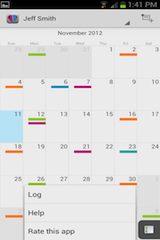
1) From the calendar view select the day in which the event took place or select the icon in the upper, right hand corner of the app.
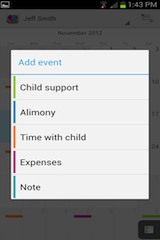
2) A drop down menu of categories will appear if you selected the icon at the top.
3) If you selected the day on the calendar, the ‘add event’ tab will appear.
4) Select and choose your desired category.
5) Enter in all information and then tap the check mark in the upper, right hand corner of the app to save. The back arrow on your phone will take you back to the calendar without saving the information.


Always make sure you have the desired date entered in the date field after selecting a category. From the calendar view you may also press and hold on a day to bring up the list of categories.


Recurring Events

1) Under each category there is an option to choose whether or not this is a one-time event or recurring.
2) If you choose the event as recurring, make sure you scroll down to adjust the date. You need to set the date for how long you want this to recur.
3) Save by selecting the check mark icon in the upper, right hand corner of the app.


Correspondence Category

1) To get to the correspondence category, tap the user name at the top and a drop down menu will appear.
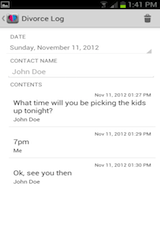
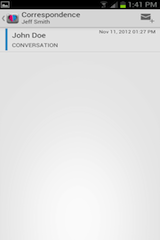
2) Under correspondence you have the ability to save text messages/emails. Each conversation is saved separately.
3) To save text messages, select SMS and it will pull all conversations saved on your phone. Select desired messages and then save. The saved messages will appear again and you must save again by selecting the check mark on the top of the screen before navigating back.
4) To save emails, select ‘other’, enter in the contact name and then copy/paste your message into the content box.


Once the desired messages are saved, you won’t have the ability to edit them. (This is by design)


Editing Information

1) To view/edit previously entered data, select the desired date from the calendar view where information has been entered.
2) Select desired category.
3) To edit, tap the pen icon in the upper, right hand corner or delete by tapping the trash can icon. You will always be asked to confirm a deletion.
4) Save changes by tapping the check mark located at the top of the screen.


Navigating Back and Forth

1) To navigate back to the main calendar view, tap the Divorce Log icon in the upper, left hand corner of the app.
2) You may also use the back arrow on your phone. Be careful when doing this because you may be navigating back without saving data.
3) To change months in the calendar view simply swipe to the left or right depending on the desired month. You can also do the same for days under the ‘add event’ tab.


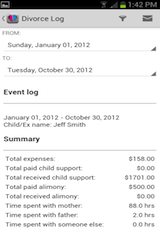
Emailing Log

1) Select the menu button on your phone and the Log tab will appear.
2) After selecting the Log, customize the dates. Once this is done, the information will automatically be updated.
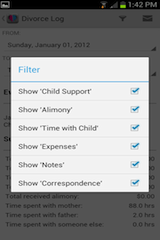
3) By using the pick list icon in the upper, right hand corner of the app, you can select individual categories to view/email.
4) Select the mail icon in the upper, right hand corner of the app.
5) Now select the format of the log file that you would like. It is it recommended (but not required) that you periodically email your logs for each individual, so you have them stored for your records.

All entered data is stored on your phones SD card (if SD card is available).

After uninstalling this app and installing it again, always select ‘open existing’ instead of ‘new’. This will pull in previously entered data.


Features:

- Day, Month, Log, and Child/Ex View
- Calculates all expenditures automatically
- Custom date selection
- Ability to add multiple children/ex’s
- Note area under each category to add additional information if needed
- Email function to send directly from the app in an HTML or plain text format
- Copy/Paste text messages or emails directly under correspondence in the application

Help

After installing the app you will be prompted to enter in a child/ex’s name and age. This must be done in order to proceed. Later you will have the option to enter as many names as you’d like. The name entered will then appear at the top/center of the app. All data entered will pertain to the selected child/ex. If you would like to select another child/ex tap the child tab then hold the name of the person you would like to select.

Month View:

The month view displays all entered data in a graphical format. Tap the desired date and this will take you to the day view (see Day View for details).

Day View:

Tap the day tab to work from the Day View. To enter your data, press and hold on the desired category. After you have entered your data, select either “Save” to save your data or “Back” to return to the main screen. To remove data, tap the selected category, the entered data will appear in hte white field below, tap the green X to delete. You can copy and paste emails or text/sms messages directly into the correspondence category. This is useful for tracking those “need to keep” messages.

Child View:

Under this tab you will have the ability to add multiple children or your ex’s name. To switch to another name, hold the name of the desired person, that name will then appear at the top, center of the app. To edit a persons info, simply tap on their bar. If you would like to delete that person, tap the green X. The current name is always displayed at the top of the screen. Be sure and check the user name before entering in any data.

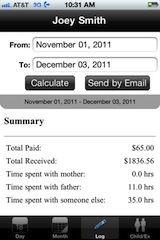
Log View:

Select Log and enter in your desired date range. Select Tap calculate and the detailed log will be displayed. To email the log, tap the grey bar above “Event Log” to access the drop down menu. Tap send by email located next to the calculate button to email the log.

** You must calculate the log before emailing or the log will be blank **